Overview
After a reserved IP is created, this address is exclusively allocated within the Gcore system. No other account can use it. The IP can be assigned to a resource or kept unassigned for future use. An existing port attached to a Virtual Machine or Load Balancer can also be marked as reserved to protect it from deletion.Billing
The monthly price for the IP is displayed in the order window. Billing applies only for the time from creating an IP to deleting it. If an IP is reserved and deleted after an hour, charges apply only for that hour. The price remains the same whether the IP is assigned or not.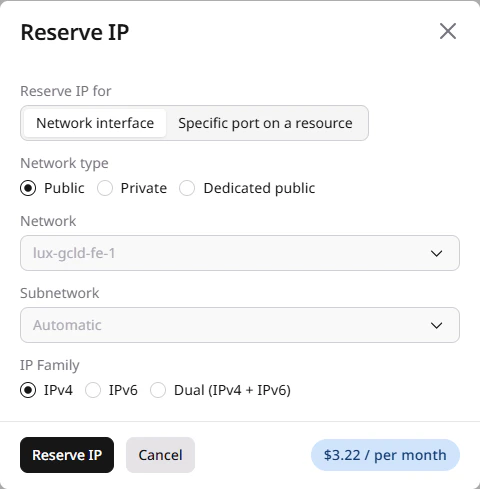
Reserve an IP address
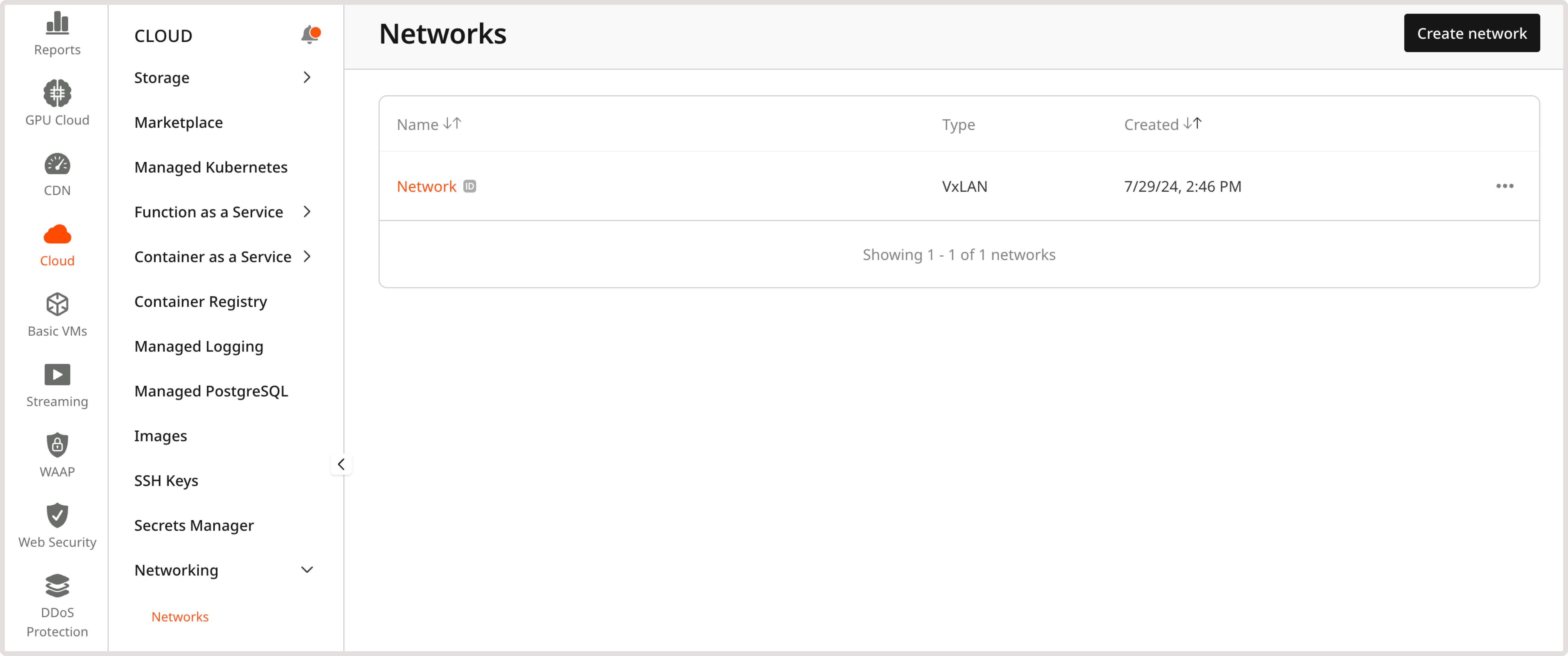
To create a new reserved IP:- In the Gcore Customer Portal, navigate to Cloud > Networking.
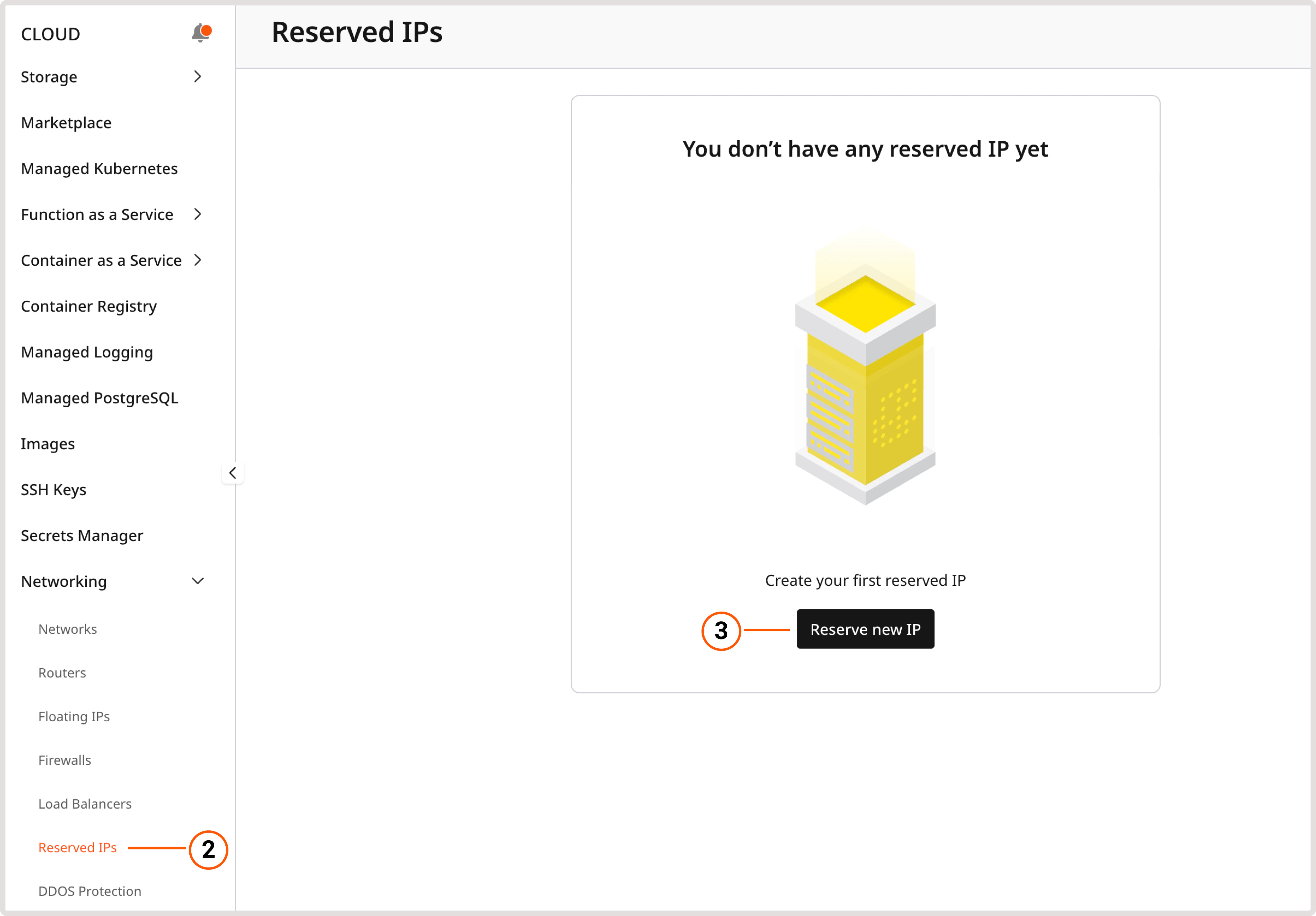
- Open the Reserved IPs page.
A project can have up to 1000 reserved fixed IP addresses that are not attached to any resource.
- Click Reserve new IP.
- In the Network field, select the network type:
- Public: External network for internet-facing IP addresses.
- Private: Internal network within the project. For this option, select the network and optionally a specific subnetwork.
- Dedicated public: Dedicated public network (if configured for the project).
A reserved private IP works within the specified subnetwork. To request a specific address, in the IP address to reserve section, select Custom and enter the IP that belongs to that subnetwork.
- (Optional) In the IP Family section, select the IP version: IPv4, IPv6, or Dual (IPv4 + IPv6).
- Click Reserve IP.
Assign a reserved IP to a VM
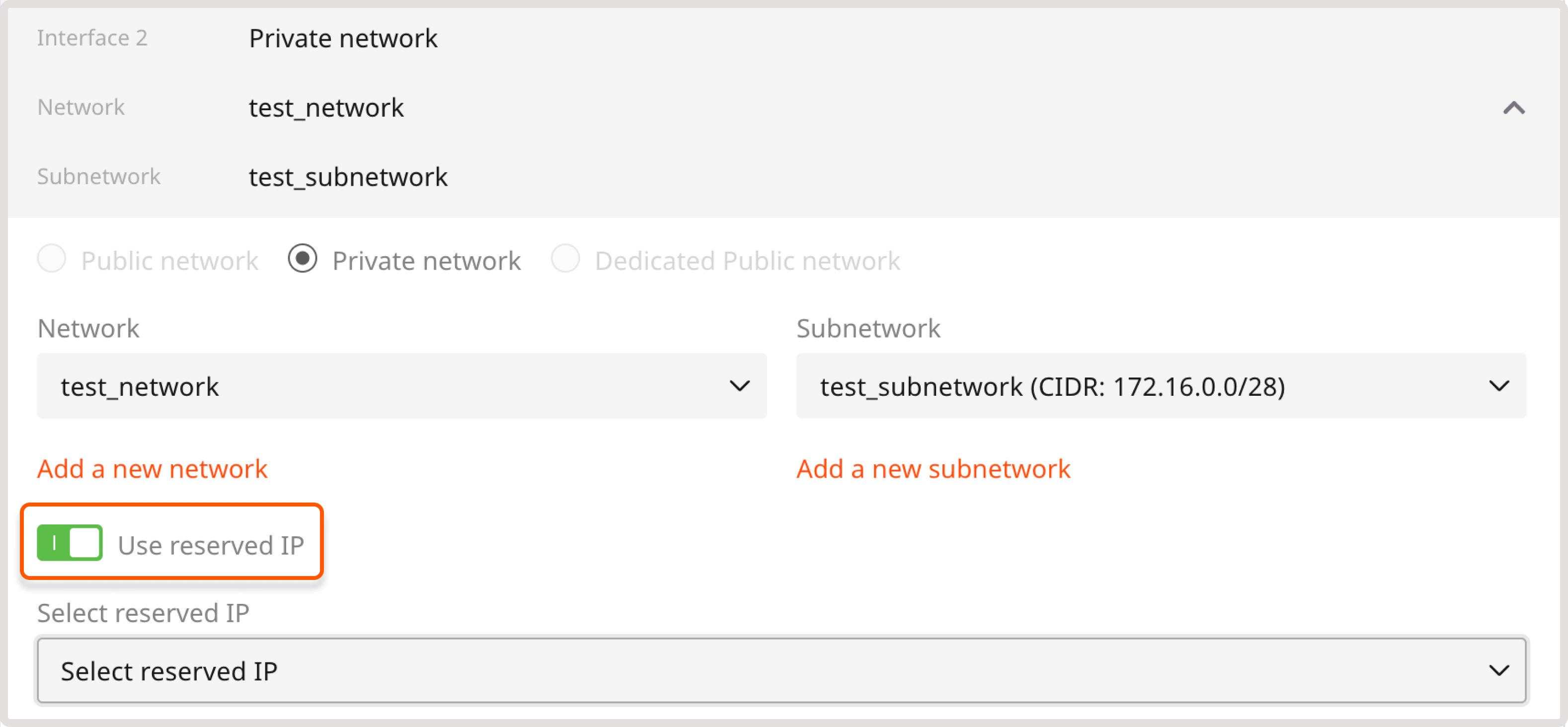
- During VM creation
- After VM creation
Refer to the VM creation guide.
Configure the network interface in the operating system
Manual configuration is required only when adding a private interface to an existing VM or Bare Metal server. Find the interface name, IP address, and CIDR in the Networking tab. The gateway is the first usable IP in the subnet (10.10.0.1 for 10.10.0.0/24).
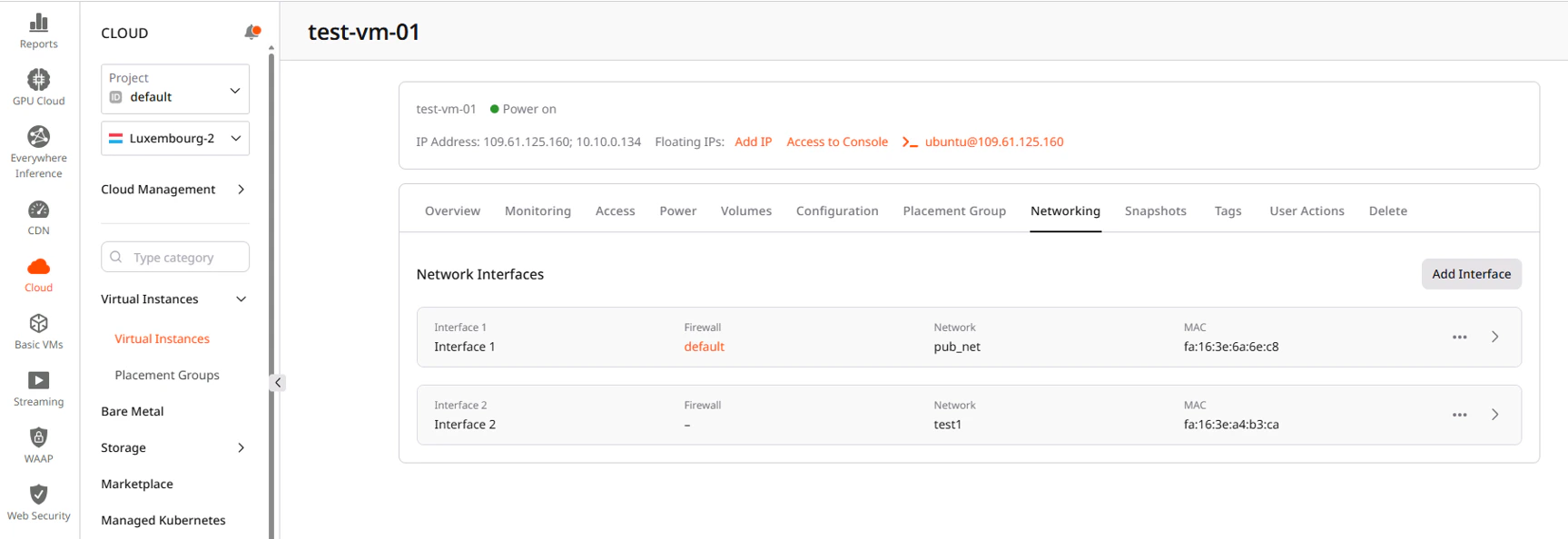
ip link show and match the MAC address shown in the portal.
- Linux
- Windows
- Temporary DHCP
- Temporary static
- Persistent DHCP
- Persistent static
If the network has DHCP enabled, request an IP address automatically:Example:
This configuration is lost after a reboot.
Detach a reserved IP from a VM
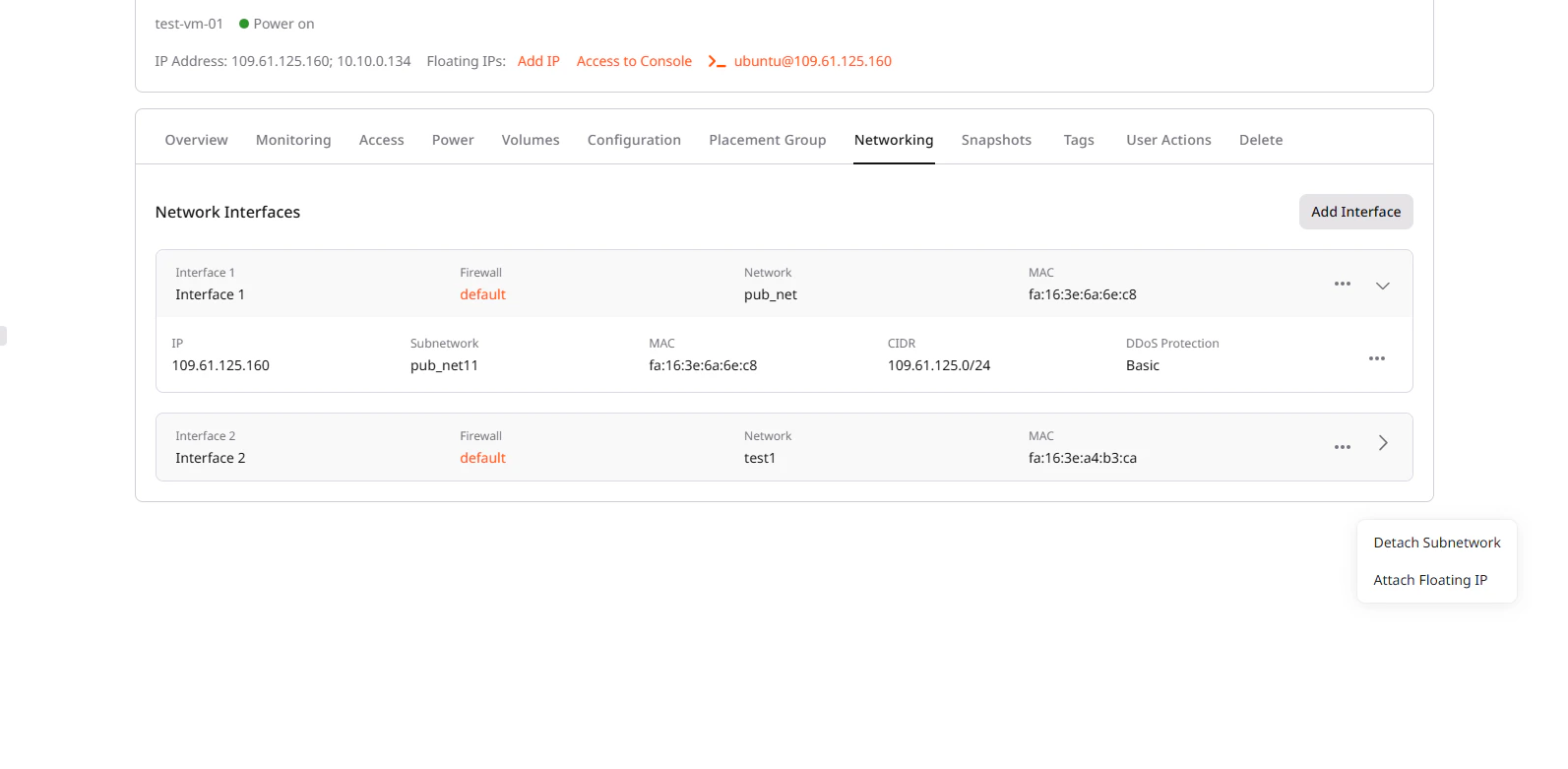
Detaching is required before reassigning the IP to another resource or deleting it.- Open the Virtual Machine settings.
- Go to the Networking tab.
- Expand the interface that contains the reserved IP.
- Click the three-dot menu next to the subnetwork row.
- Select Detach Subnetwork.
Assign a reserved IP to a load balancer
Reserved IP assignment is available during Load Balancer creation. For instructions, refer to the Load Balancer creation guide.Find a resource with reserved IP
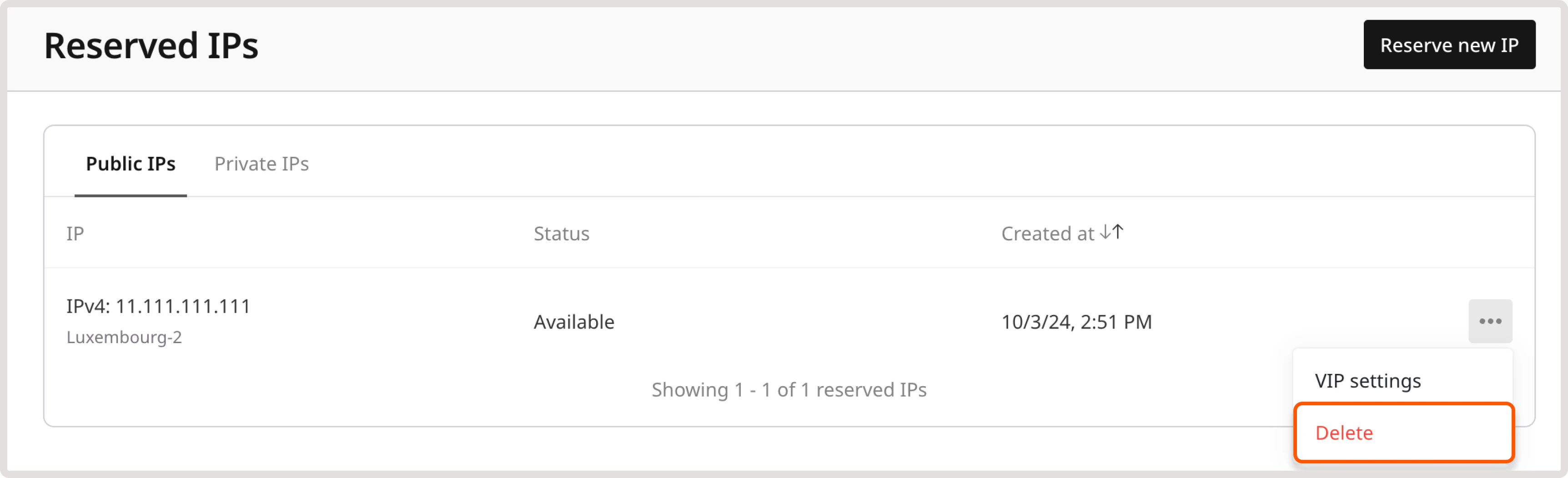
The Status column on the Reserved IPs page shows if an IP is attached to a resource: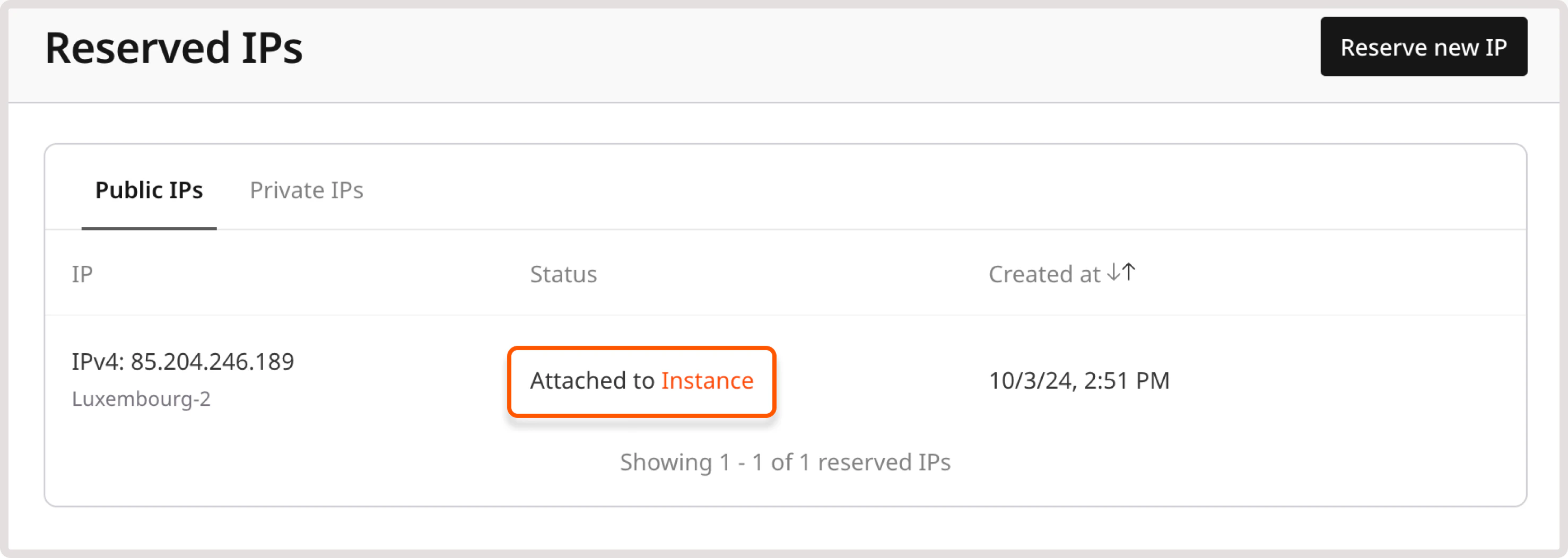
Delete a reserved IP
After verifying that the IP is no longer attached to any resource, it can be deleted:- In the Gcore Customer Portal, navigate to Cloud > Networking.
- Open the Reserved IPs page.
- Click the three-dot icon next to the target IP.
- Select Delete.